
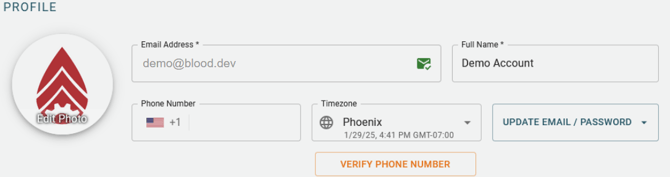
Profile Picture
An optional picture which will be displayed on your account, visible to all of your organization. Click 'Edit Photo' to upload a new picture, or take one form your mobile device.
Email Address
The email address associated with your account. This email address is used to log in, and to send notifications. A green icon indicates that the email address has been verified.
If your email has not been verified, a yellow warning icon will be displayed. Click the icon, or click on the Verify Email button to resend the verification email.
The name of the individual associated with this account. This name will be displayed to other users in your organization.
Phone Number
The phone number associated with this account, used for sending SMS alerts to. A green icon indicates that the phone number has been verified.
Your phone number will not be visible to other members of your organization, but will be visible to organization administrators.
In order to receive SMS alerts, you must have a valid phone number associated with your account. To validate your phone number, click the Verify Phone Number button.
Time Zone
The timezone associated with your account. This timezone will be used to display all dates and times in your local time within the app, and for Alerts. The timezone is automatically selected based on the first device you login with, but can be changed at any time.
The timezone is able to be overridden by the 'Use UTC Time' setting in the Preferences.
Updating Email Address
To update your email address (used for email alerts and login), click the Update Email/Password button, and select 'Change Login Email'.
Enter your new email address, enter it again to verify, and click 'Update Email'. An email will be sent to the new address to verify the change.
Your login email will not be updated until you click the link in the verification email.
Updating Password
To update your password, click the Update Email/Password button, and select 'Change Password'.
Enter your current password. If you do not recall your current password, log out, and use the 'Forgot Password' link on the login page.
Enter your new password, and enter it again to verify. Click 'Change Password' to save the new password.