
These policies will apply to every user and device within your Organization, overwriting user preferences, and mandating compliance with organizational standards.
Policies
Organization Policies allow Administrators to enforce settings across all users and devices within their organization. These policies help ensure compliance with organizational standards and streamline management by applying consistent rules for alerting, blood rotation, and inspection requirements.
Who can manage policies?
Policy settings are visible to all users, but are only able to be edited by Administrators.
Temperature Alert Thresholds
Set the temperature thresholds for alerts to be sent for all devices in your organization. If a device reports a temperature deviation above or below the defined set points, an alert will be sent to users subscribed to receive alerts for that device.
Note that users can still choose to receive alerts for specific devices, but the thresholds for when those alerts are sent will be determined by this organizational policy.
This policy includes two hardcoded values for Excursions (2°C and 6°C), which are the standard thresholds for temperature excursions in blood transport per AABB Guidelines.
Optional Temperature Warning thresholds may be set between the ranges of 2.0°C—2.5°C, and 5.5°C—6.0°C, to provide early warnings before an excursion occurs.
Note that Temperature alerts are sent when the temperature exceeds the safe excursion limits, i.e. when the device temperature is above 6°C or below 2°C, and not at exactly 2.0°C or 6.0°C.
Managed Alert Subscriptions
Control whether users are able to select which devices to subscribe to alerts for, or if alerts should be managed by their Team. Options are: User Alerts (default), Team Alerts and All Active Devices. When selecting Team Alerts, use the "Teams" tab at the top to select which teams will have alerts enabled for all of their assigned devices.
Managed Alert Subscriptions are not available yet.
Blood Management Policies
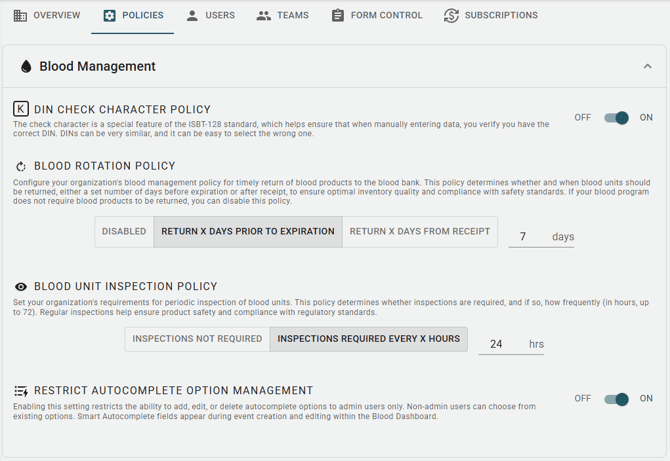
DIN Check Character Policy
The check character is a special feature of the ISBT-128 standard, which helps ensure that when manually entering data, you verify you have the correct DIN. DINs can be very similar, and it can be easy to select the wrong one.
Blood Rotation Policy
Configure your organization's blood management policy for timely return of blood products to the blood bank. This policy determines whether and when blood units should be returned, either a set number of days before expiration or after receipt, to ensure optimal inventory quality and compliance with safety standards. If your blood program does not require blood products to be returned, you can disable this policy.
- Disabled
- Blood units are not required to be returned before expiration. Use this option if your organization does not mandate blood rotation.
- Return X days prior to Expiration
- Blood units must be returned to the blood bank a specified number of days before their expiration date. This helps ensure inventory quality and compliance with safety standards. Enter the number of days in the field provided (1-72 days).
- Return X days from receipt
- Blood units must be returned a specified number of days after they are received, regardless of expiration date. This option is useful for organizations that want to enforce a fixed rotation period for all blood products. Enter the number of days in the field provided (1-72 days).
Auto Archive Policy
Choose whether a blood unit should be automatically archived a set number of days after reaching the end of its lifecycle. A blood bag reaches the end of its lifecycle when it is discarded, transfused, or returned to a blood bank.
- Never Auto Archive
- Blood Bags will remain unarchived until an "Archive" event is submitted.
- Archive After X Days
- Blood Bags will be automatically archived a specified number of days after reaching the end of their lifecycle. Enter the number of days in the field provided (1-72 days).
Blood Unit Inspection Policy
Set your organization's requirements for periodic inspection of blood units. This policy determines whether inspections are required, and if so, how frequently. Regular inspections help ensure product safety and compliance with regulatory standards.
- Inspections Not Required
- Blood units do not need to be inspected periodically. Select this option if your organization does not require regular inspections of blood products.
- Inspections Required Every X Hours
- Blood units must be inspected at a specified interval (in hours, up to 72). This helps ensure product safety and compliance with regulatory standards. Enter the number of hours in the field provided (1-72 hours).
- Inspections at a Set Time
- Must be performed at specific times on specific days, with an "Inspection Period" where users can perform inspections within a designated timeframe.
- Admins may designate the scheduled inspection times and days.
Restrict Autocomplete Option Management
Enabling this setting restricts the ability to add, edit, or delete autocomplete options to admin users only. Non-admin users can choose from existing options. Smart Autocomplete fields appear during event creation and editing within the Blood Dashboard.
- Disabled
- Allows all users to add, edit, or delete autocomplete options.
- Enabled
- Restricts the ability to add, edit, or delete autocomplete options to admin users only. Non-admin users can choose from existing options.