
Only Admins and Managers are able to manage licenses. All other users will not see the license management buttons.
Activating and Transferring Devices
Devices which are not currently assigned a License will have one of these two buttons in the Device Manager: Activate (Green) or Transfer (Orange)
Clicking the button will open up the License management window:
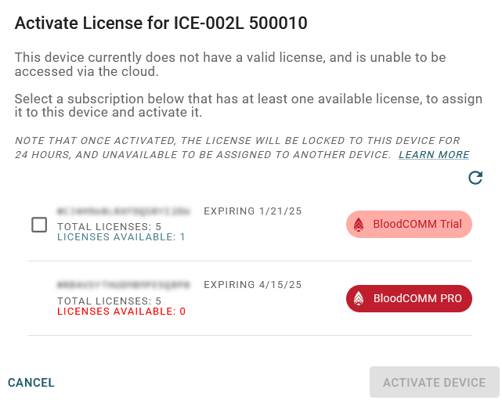
Once a device is activated, it will be "locked" to the subscription it was activated with for a 24 hour period, to prevent abuse of the system. After 24 hours, the device will be able to be deactivated again.
Deactivating a Device
To deactivate a device and remove its license, click the 'Deactivate' button in the Device Manager. A window will pop up confirming that you wish to block online access to the device.
The device will be immediately able to be re-activated using the same or a different license.
The license will be immediately available for use on another device.