
Scanning is the primary method of initially registering a blood unit into the BloodCOMM system. This is done by scanning the blood unit label, which contains all of the information required to register the blood unit.
 BloodCOMM Premium is compatible with ISBT 128 labels. Currently supported are all blood products (whole blood, plasma, etc), however additional products that utilize the ISBT 128 standard may be supported in the future.
Please reach out to support@deltadevteam.com if your program is carrying non-blood products or uses labels which are not ISBT-128 compliant.
The DIN is located on the top left of the label, and is the first barcode on the label.
If a blood bag has previously been scanned and registered, only the DIN barcode must be scanned to identify the blood bag within BloodCOMM.
Once the DIN barcode has been scanned, the system will automatically find the blood unit in the system, and will open the "Add Event" screen, bypassing the scan confirmation.
|
AI Scanning (Preferred)
|
Barcode Scanning
|
Manual Entry
|
|---|---|---|
| Automatic scanning and validation of an entire blood unit label using the camera on your device. This is the most efficient method of scanning blood unit labels. Note: only available on Android and iOS at this time. |
Scanning and validation of blood unit labels using standard, off-the-shelf barcode scanners. Works with any standard barcode scanner, including Bluetooth and USB scanners. |
Manual entry and validation of blood unit labels using the keyboard on your device. This is the most flexible method of scanning blood unit labels. Useful for damaged labels. |
AI Scanning
The AI Scanning feature is the most efficient method of scanning blood unit labels. This feature uses the camera on your device to automatically scan and validate an entire blood unit label.
Simply point the devices camera at the blood unit label, and all barcodes with be simultaneously scanned and validated.
Once the required labels have been scanned and validation is completed, a preview of the label will be displayed on the screen. This preview will show the scanned label, and will allow you to verify the label before continuing. This method also allows for a device label QR code to be scanned, which will automatically find and select the device for checking in.
AI Scanning Example
The following images show the AI Scanning feature in action. The camera is pointed at a blood unit label, and the scanner is automatically scanning all barcodes on the label.
- Since the DIN is partially covered, the scanner has detected 3/4 of the required barcodes, and is displaying the appropriate markers.
- All four barcodes have been detected (note that this step happens instantly).
- A preview of the scanned label is displayed, allowing for verification, or to try again if the preview does not match the label.
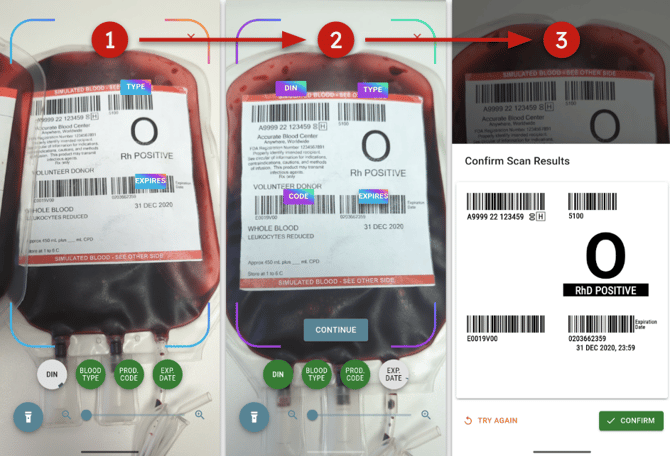
If a label is not able to be scanned, markers will appear on the screen after 1 second, indicating which labels have been identified and which ones are currently visible.
Additionally, if a bag is more full and the entire label is not visible due to the curve of the label, the the camera will have to be moved to scan all of the barcodes.
If all labels are not able to be scanned successfully - a "Continue" button will appear, allowing you to continue without a complete data set. Only the DIN is required to register a blood unit.
Barcode Scanning
The Barcode Scanning feature is the most flexible method of scanning blood unit labels. This feature uses standard, off-the-shelf barcode scanners to scan and validate blood unit labels.
This method also allows for a device label QR code to be scanned, which will automatically find and select the device for checking in.
Every barcode scanner is different, and some may require additional configuration in order to work properly with your computer or mobile device. Please refer to the documentation for your barcode scanner for more information on how to configure it.
BloodCOMM Supports the following Barcode settings:
- Continuous scanning mode (Recommended)
- Return, newline, or tab after each scan.
- Wireless (bluetooth, wifi) or USB connection.
- No keystroke delay required.
- Capslock / character case does not matter.
Note that Device Label barcodes are 2D QR Codes, scanners must support both 1D and 2D barcodes.
Manual Entry
The Manual Entry feature is the a fallback method of entering blood unit labels. This feature allows use of the keyboard on your device to enter and validate blood unit labels.
Individual labels are entered, one at a time. The raw data under the barcode must be typed in, exactly as it appears on the label. This includes all characters, including the check character.