
How GPS Tracking Works
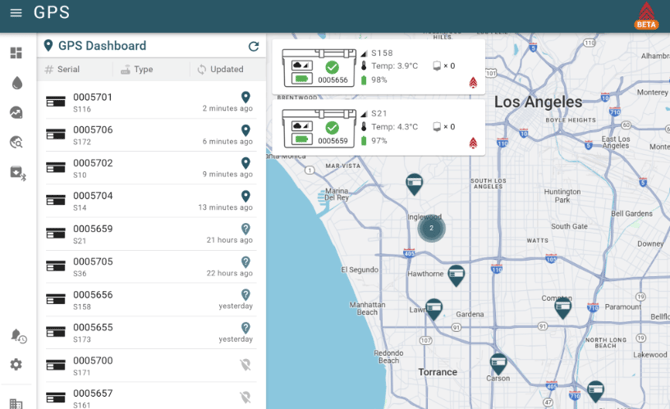
- Fleet Map
- Shows the last known location of each device.
- Clicking on an icon displays the device status.
- Device List
- Clicking a device centers the map and displays its status.
- Location Updates
- GPS attempts to update every 15 minutes, however the dashboard shows the last known location.
Interacting with the Map
- Click on any device icon to view its current status, including battery level, temperature, and connectivity.
- Click on "Service Area" to view the rough geographic boundaries where the device has been the last 7 days.
- Click on "Location History" to view a timeline of the reported locations over the past 7 days.
- Below the device, click on "View Location History Animation" to see an animated playback of the movement over the past 7 days.
In the web browser, use your mouse to click and drag the map, and the mouse wheel to zoom in.
On mobile devices, use your finger to swipe and drag the map, and pinch to zoom in and out. You may also rotate the map in 3D by using two fingers to twist and tilt the map in either direction.
Device Eligibility
Only Premium devices report their location. If your device does not appear on the map, it may not support GPS tracking.
ICE 2L devices may require a hardware or firmware upgrade to support GPS. If your ICE device is older or has not been upgraded, please contact support@deltadevteam.com for assistance.
GPS locations may not update as frequently as device status. The GPS Dashboard will only show the last known location. Devices may not report if offline or if GPS is disabled.