Main Features:
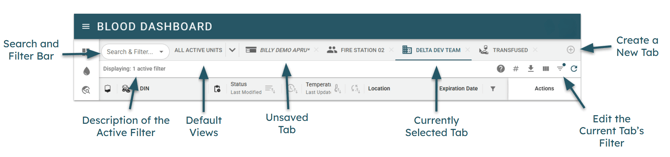
- Quickly switch between filtered views of the Blood Dashboard using the tabs at the top of the screen.
- Use the search bar in the top left to access device- and team-specific views, or to perform a quick search of your current view.
- Create your own personalized views of the Blood Dashboard by creating new tabs with customizable names, icons, and filters. Users can create views for devices, teams, organizations, blood statuses, and more...
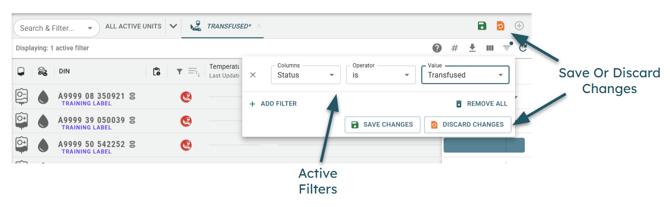
- Save your tabs to your device so that they are available the next time you log in. Unsaved tabs appear in italics with an asterisk (*) next to their name.
By default, a user's first tab is a dropdown containing the following views:
- All Active Units: Displays all non-archived blood bags. Blood bags in devices you do not have access to will be visible, but some information may not be viewable.
- Your Active Units: Displays non-archived blood bags excluding those in devices you lack access to. Only visible to users who do not have full admin access.
- Archived Units: Displays all archived blood bags.
Smart Search Bar
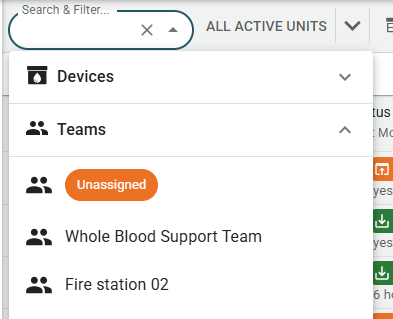
Use the search bar to quickly find and open a device- or team-specific view as a new tab. Device views will show all blood units currently checked into the selected device, while team views will show all blood units checked into devices assigned to the selected team.
Alternatively, use the search bar to perform a quick search of your current view. Quick searches will check all fields of the blood unit table for text matching your search query. You can search for DINs, device names, blood statuses, and more.
Tab Editing
New tabs can be created by clicking the "+" button at the top right of the page. Double click an existing tab to edit its name and icon. Click on the filter icon at the top right of the table to customize the filters applied to the current tab. The names of new and edited tabs will appear in italics with an asterisk (*) until they are saved. Tabs are saved locally to your device, so they will be available the next time you log in. Unsaved changes will be lost upon navigating away from the page.